
By the end of this post you will have a frontier model style assistant running on a cheap VPS (6 CPU cores, 8 GB RAM, 140 GB SSD, no GPU) that nobody else on the internet can see, let alone use. The server exposes exactly one port to the world: SSH, with key only login. The AI is reached through an SSH local port forward, so on your own machine it simply lives at http://localhost:8080 ;)
The stack:
- Ollama runs the language model and serves it over a local HTTP API.
- An abliterated Qwen3 8B model, quantized to about 5 GB, does the thinking. "Abliterated" means its refusal behaviour has been surgically removed.
- Open WebUI, running in Docker, gives you a clean chat interface with history, system prompts and file uploads.
- An SSH tunnel carries your traffic from your laptop to the server, encrypted and authenticated with your key.
- ufw + fail2ban make sure SSH is the only door, and that bots knocking on it get banned.
I use mine for three things: fixing grammar and tightening paragraphs, quick IT and cybersecurity questions, and small coding jobs. My client machine runs Parrot OS, so every client side command here is Linux.
The demo server#
Everything in this post was built and tested on this VPS
| Spec | Value |
|---|---|
| OS | Ubuntu 24.04 LTS, 64-bit |
| CPU | 6 cores (no GPU) |
| Memory | 8 GB RAM |
| Disk | 140 GB SSD |
| Client | Parrot OS |
This is a budget box, so it sets the ceiling on speed and model size. For better performance, use a GPU-enabled server or one with more memory 16 GB of RAM lets you run a 14B model, and a GPU makes generation an order of magnitude faster. the setup and the lockdown in this guide stay exactly the same on bigger hardware
Why self host? The privacy argument#
Self hosting moves the one place your prompt is readable in plain text from someone else's data centre to a machine you control. Everything else in this post follows from that.
When you type into a hosted chatbot, TLS protects the text on the wire, but it is decrypted on the provider's servers so the model can read it. from there, depending on the provider and your settings, it may be logged, kept for retention period, reviewed by abuse detection systems or humans, used to train future models or handed over in response to legal requests (where shit get serious). You also inherit the provider's content policy, which matters in security work a perfectly legitimate question about a payload you found in a log can get refused
With this setup, the prompt is decrypted only inside your SSH session on your server, processed by a model file sitting on your disk, and answered without any third party in the loop
| Hosted chatbot | Self-hosted (this setup) | |
|---|---|---|
| Where your text is decrypted | Provider's servers | Your VPS, inside your SSH tunnel |
| Who can read the logs | Provider, its reviewers, legal requests | You (and, technically, your VPS host) |
| Used for training | Depends on provider and settings | Never |
| Refusals | Provider's policy | Whatever the model you pick does |
| Model changes | Silent, whenever the provider updates | Only when you pull a new model |
| Cost | Subscription or per-token | Fixed VPS price |
| Quality and speed | Frontier models, fast | 8B model, 3 to 8 words per second |
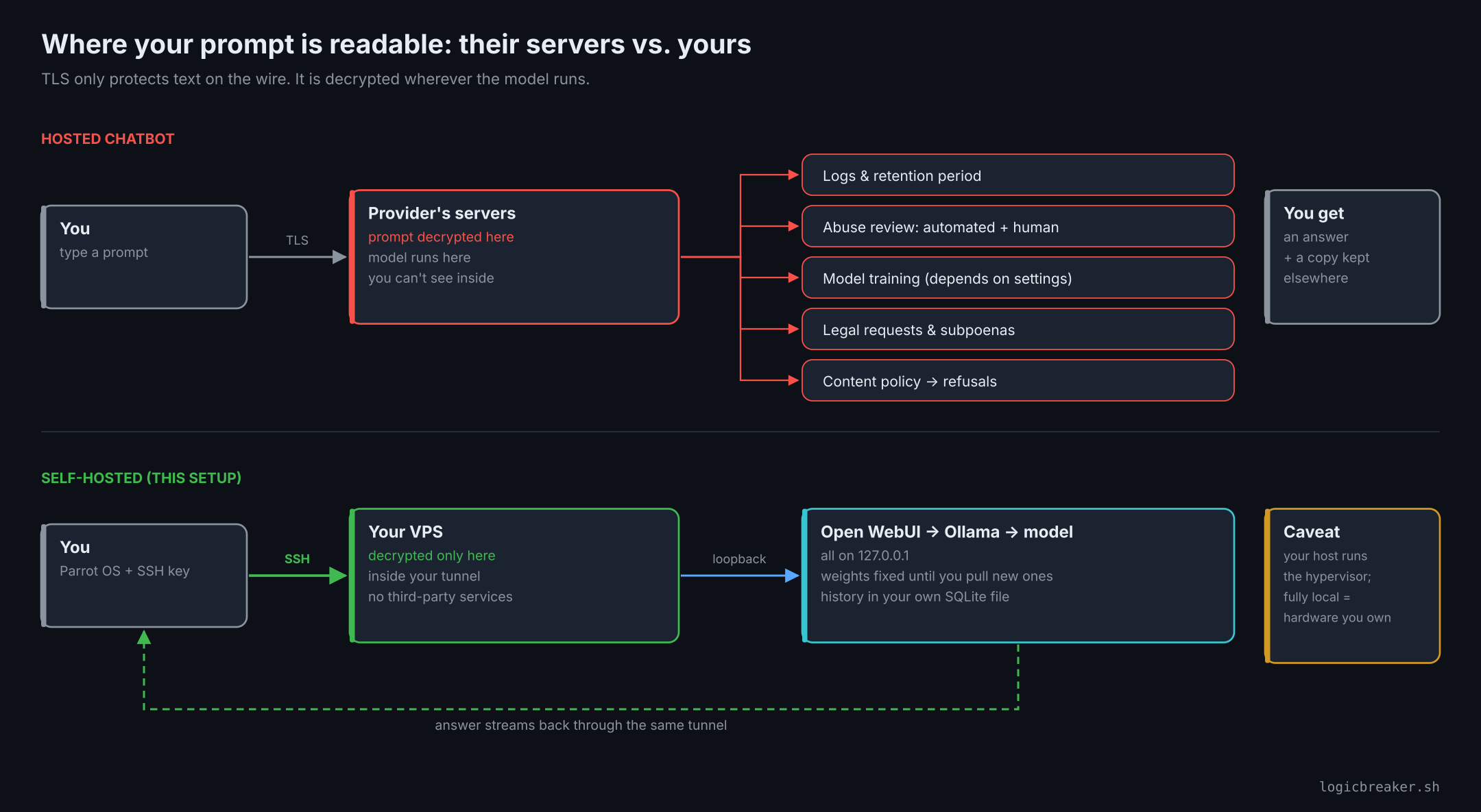
a VPS is still someone else's hardware: the hosting company runs the hypervisor, so in principle it can read the VM's disk and memory. Truly local means a box under your desk. if you have good config hardware and GPU feel free to run bigger model on your own local hardware which is one of the best way to keep your data safe
The architecture#
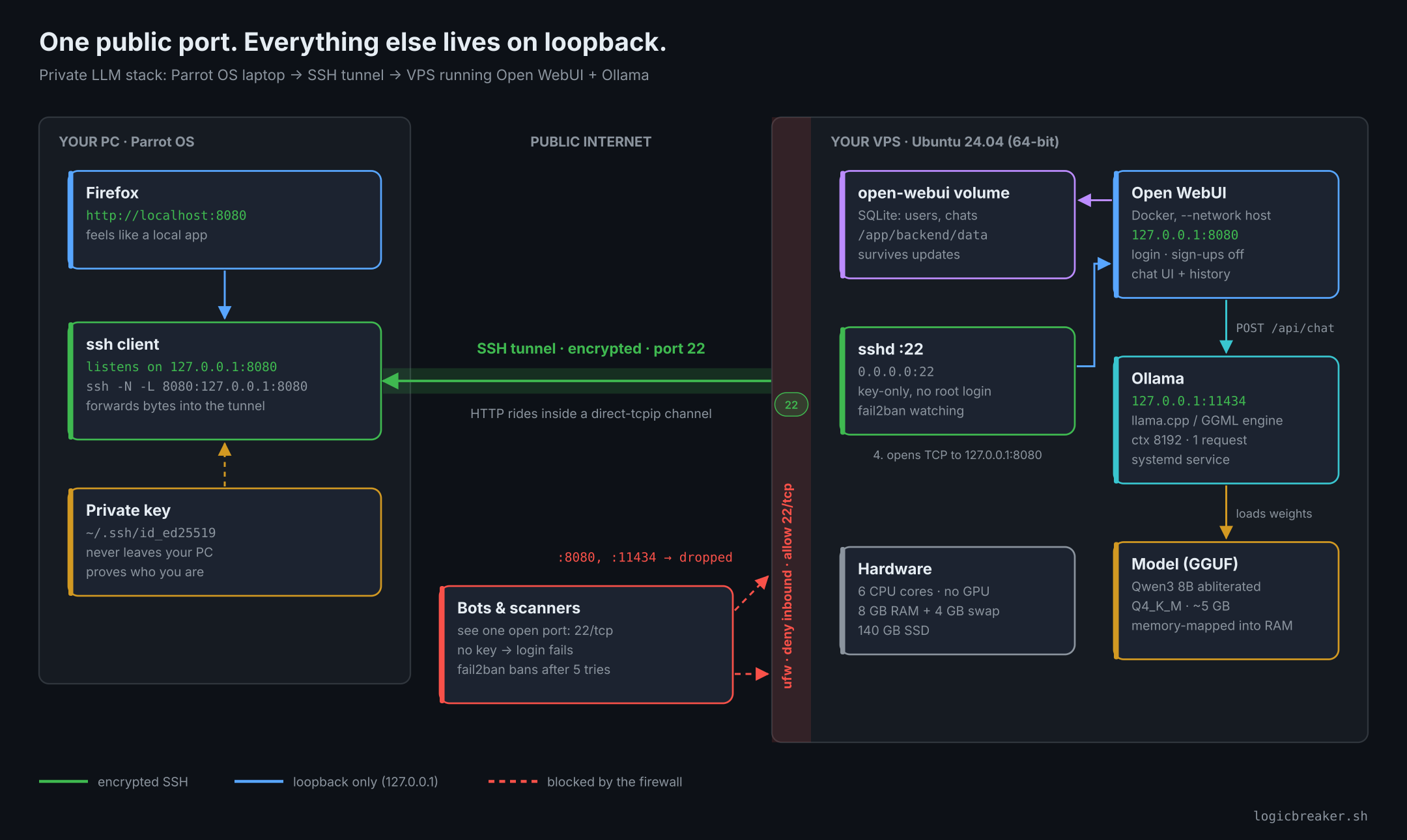
The server has exactly one door facing the internet, SSH on port 22, and every other service listens only on 127.0.0.1. Your laptop reaches those services by riding through that one door.
Three zones make up the whole system
- Your PC. Firefox talks to
localhost:8080, where thesshclient is listening. Your private key never leaves this machine. - The public internet. All it ever carries between you and the server is encrypted SSH traffic. Scanners and bots see port 22 and nothing else.
- The VPS (Ubuntu 24.04). ufw drops everything except port 22.
sshdaccepts only your key, then hands the tunnelled traffic to Open WebUI on127.0.0.1:8080, which calls Ollama on127.0.0.1:11434, which runs the model file from RAM.
part 1: the model and Ollama#
What the model actually is#
so a large language model is a big file of numbers (weights) plus a fixed recipe, the transformer, for using them. Given some text, it predicts the most likely next token (a word or piece of a word), appends it, and repeats. Everything it "knows" is baked into those weights; nothing is looked up at runtime.
"8B" model has about 8 billion weights. Stored at full 16-bit precision that is 8 billion × 2 bytes = 16 GB, which would not fit in our 8 GB of RAM. That is where quantization comes in
Quantization and GGUF :)#
Quantization stores each weight in fewer bits. the Q4_K_M format we use packs weights into blocks at roughly 4.5 to 5 bits each, with a small per block scale factor so the rounding error stays low. The 16 GB model shrinks to about 5 GB with only a small loss in quality.
The file format is GGUF, from the llama.cpp project. One GGUF file holds the quantized weights, the tokenizer (how text is split into tokens), and metadata such as the chat template and context length. It is designed to be memory mapped, so the OS can load it straight from disk into RAM
What Ollama does?#
Ollama is a Go program that wraps the llama.cpp/GGML inference engine and turns "run a model" into a managed service. It does four jobs
- Model store.
ollama pulldownloads a model as content-addressed blobs (named by their SHA-256 hash), much like Docker image layers, plus a manifest that ties them together. On a systemd install they live under/usr/share/ollama/.ollama/models. - Modelfile. Each model carries a Modelfile: the base weights, the chat template that wraps your messages in the special tokens the model was trained on, default parameters (temperature, context length) and an optional system prompt.
- Loading and unloading. On the first request, Ollama maps the GGUF into RAM, allocates the KV cache, and keeps the model loaded for 5 minutes of idle time before freeing the memory.
- The API. It serves an HTTP API on
127.0.0.1:11434:/api/chat,/api/generate,/api/tags(list models), plus an OpenAI-compatible/v1/chat/completions. Anything that speaks that API, including Open WebUI, can use the model. We keep it bound to localhost so only processes on the server can reach it.
What happens during one answer#
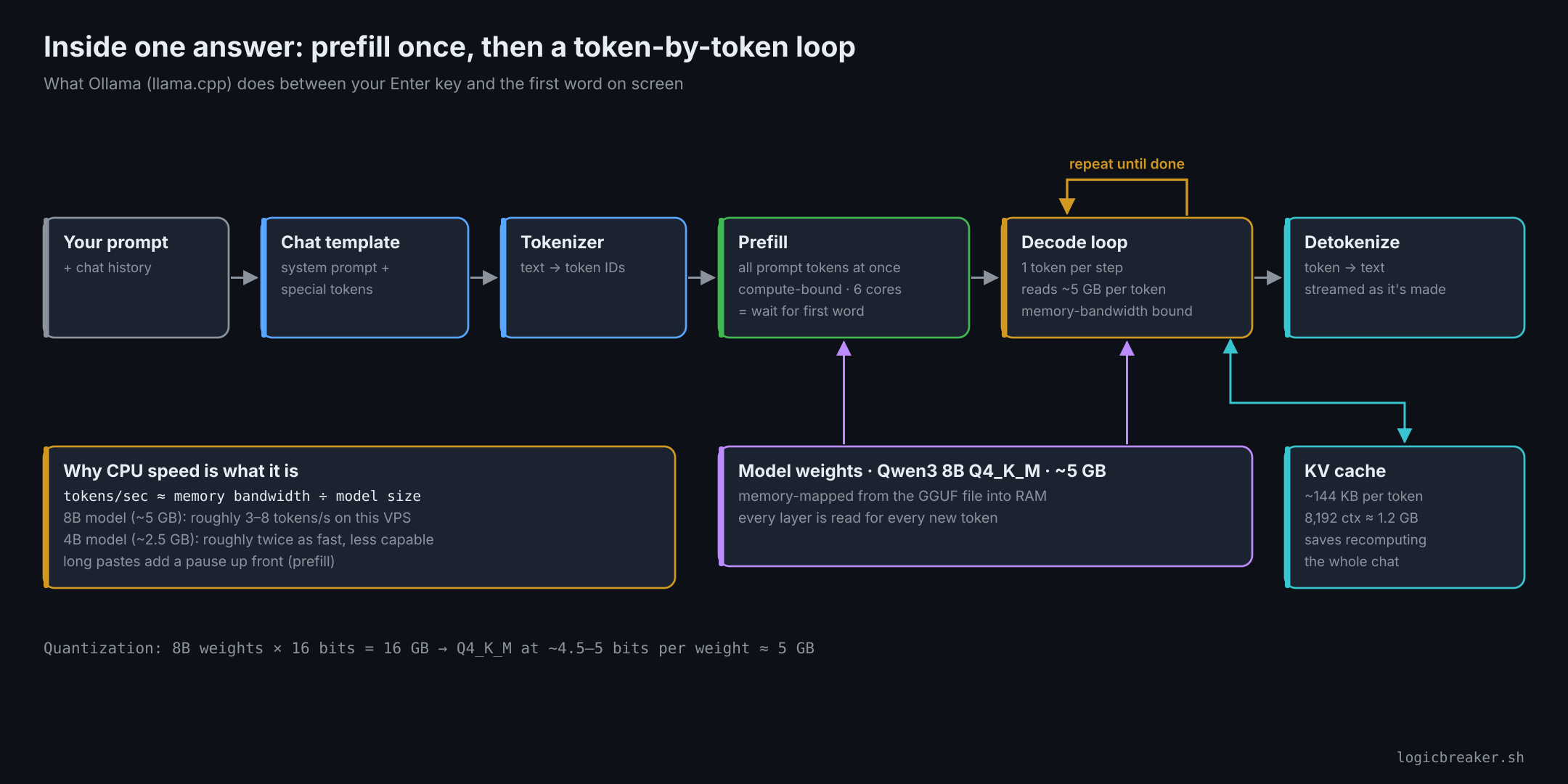
Generation runs in two phases, and they explain why CPU hosting feels the way it does:
- Tokenize. Your chat history and system prompt are wrapped in the chat template and split into tokens.
- Prefill. The model processes all the prompt tokens at once. This is maths-heavy and uses all 6 cores, so a long pasted paragraph means a pause before the first word appears.
- Decode loop. The model produces one token at a time. For each token it must read essentially all ~5 GB of weights from RAM, so speed is limited by memory bandwidth, not CPU. A rough rule: tokens per second ≈ memory bandwidth ÷ model size. That is why a 4B model is roughly twice as fast as an 8B one.
- KV cache. To avoid recomputing the whole conversation for every new token, the model caches each layer's key and value vectors for every token so far. For Qwen3 8B that is about 144 KB per token, so an 8,192-token context costs roughly 1.2 GB of RAM. That is why we cap the context length.
- Stream back. Each token is detokenized and streamed to the client as it is produced.
What "abliterated" means?#
Safety tuned models refuse certain requests. Researchers found that in many models this behaviour is controlled by a single direction in the model's internal activations: "refusal direction". Abliteration finds it by comparing the model's activations on prompts it refuses with those on prompts it answers, then edits the weights so the model can no longer write along that direction. No retraining is needed, and the model stops refusing with only a small loss in capability.
That differs from "uncensored fine tunes" such as Dolphin, which are retrained on datasets with the refusals stripped out. either way, you get fewer refusals not more knowledge.
part 2: Open WebUI#
Open WebUI is the part you actually look at a self hosted chat interface that talks to Ollama on your behalf. Its backend is Python and its frontend is a Svelte single page app, shipped together as one Docker image , which is easier to deploy in production
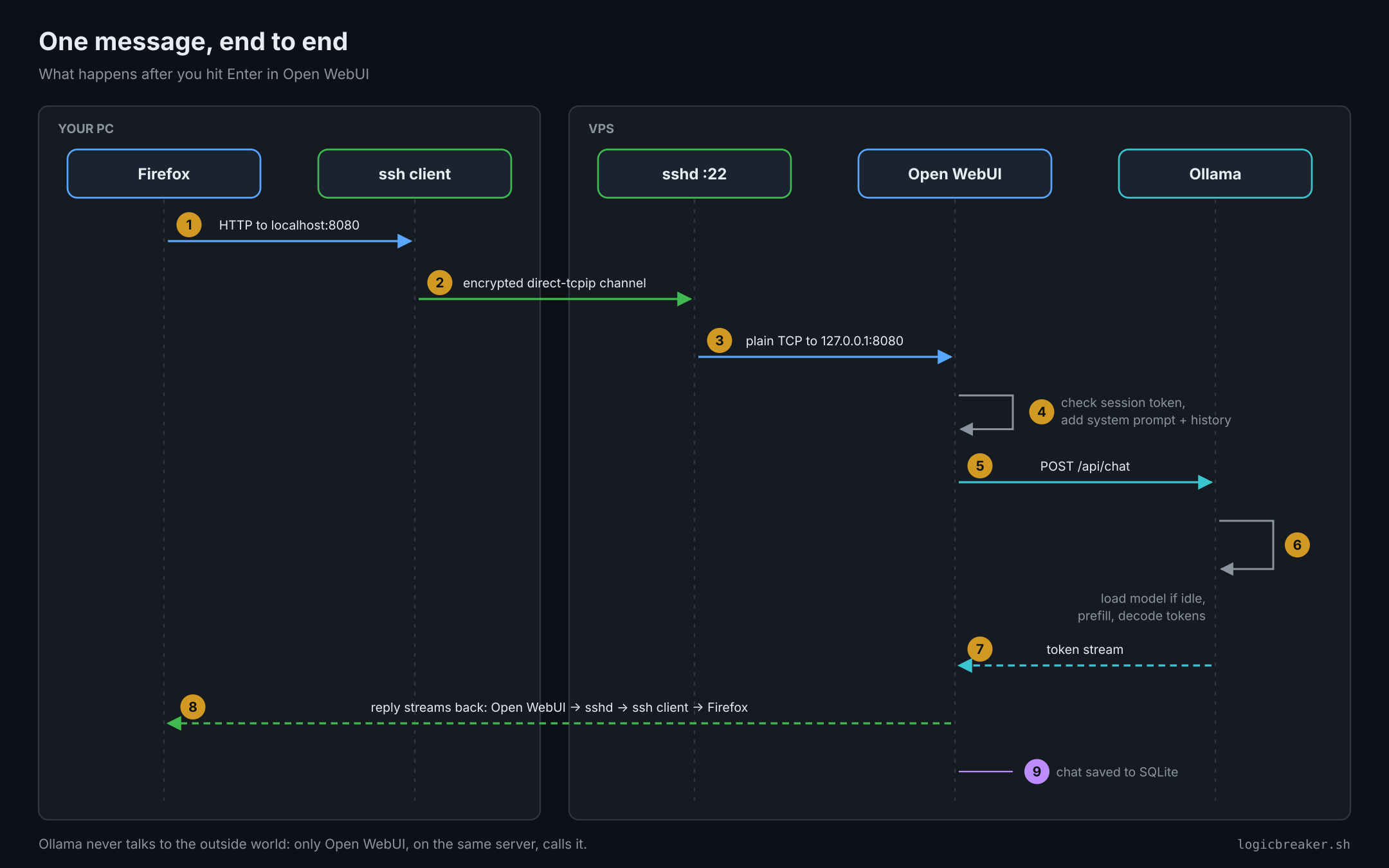
How a message flows through it
- Your browser loads the UI from
http://localhost:8080(really the server, via the tunnel) and sends your message to the Open WebUI backend. - The backend checks your session token, adds the system prompt and chat history, and calls Ollama's
/api/chaton127.0.0.1:11434. This call happens server-side, which is exactly why Ollama never needs to be exposed to anything. - Ollama streams tokens back to the backend, which streams them to your browser over the same connection.
- The finished conversation is saved to a SQLite database inside the
open-webuiDocker volume (/app/backend/datain the container), along with users, settings and uploaded files.
features for this use case
- Custom models (Workspace → Models): save a model plus a system prompt as a named preset, such as "Grammar fixer" or "Bash helper".
- Prompts: saved snippets you can insert with
/. - Document upload: attach a file and ask questions about it. The text is chunked and searched locally
Two settings that matter for security#
Accounts. Open WebUI has its own login. The first account created becomes the admin and after that you switch off new sign ups. even if someone somehow reached the port from internet, they would hit login page with no way to register.
Why --network host and HOST=127.0.0.1. The usual way to run a container is -p 8080:8080. Docker implements that by inserting its own iptables NAT rules, and those packets are redirected before they ever reach the INPUT chain where ufw's rules live. In plain words: published Docker port ignores your ufw firewall and is open to the whole internet. Running with --network host skips Docker's NAT entirely, so the container's socket is just a normal process socket on the host. Setting HOST=127.0.0.1 then makes Open WebUI listen on the loopback interface only, so even with the firewall off, nothing outside the server could connect to it.
part 3: SSH local port forward#
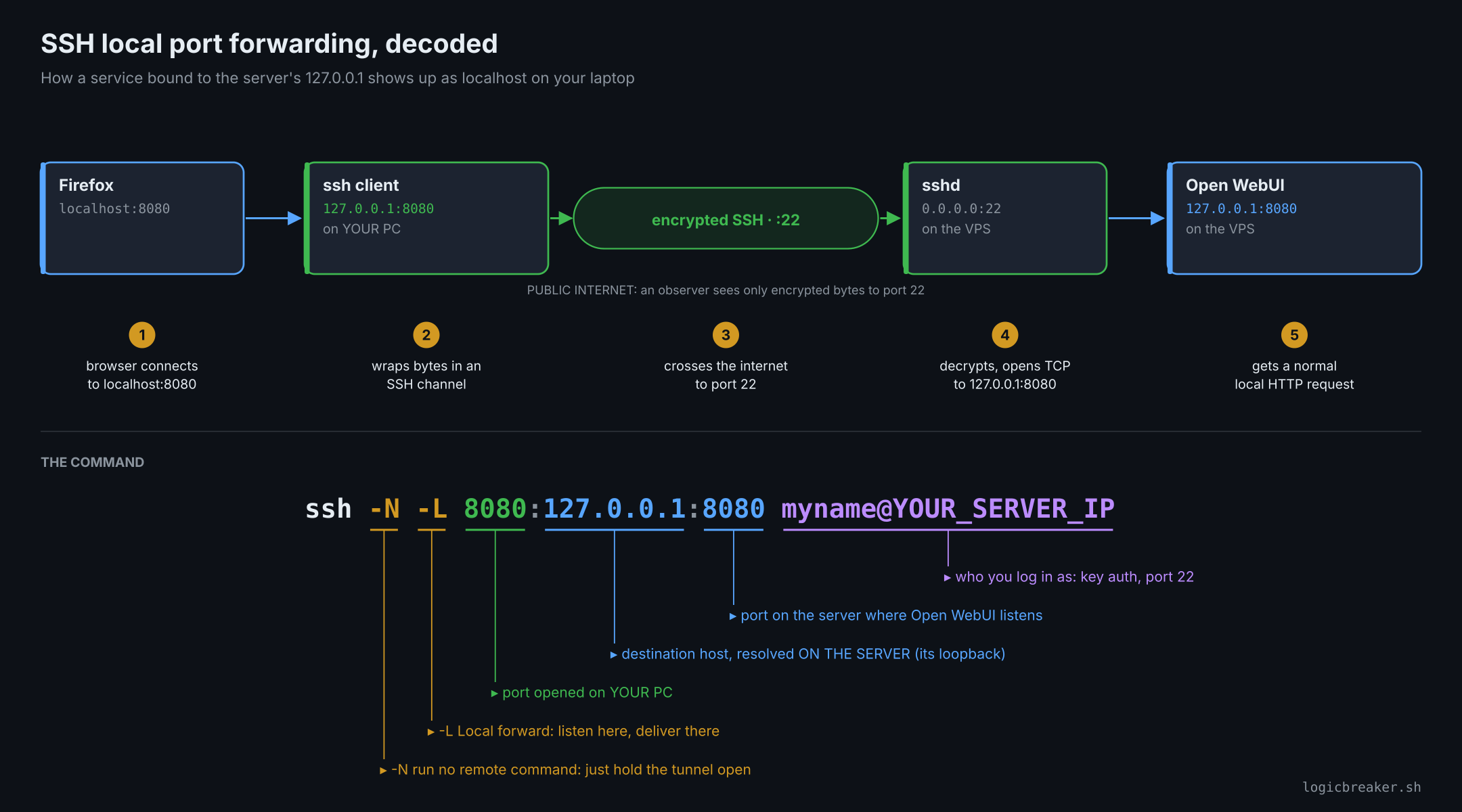
the tunnel is what lets service that listens only on the server's loopback interface show up on your laptop as if it were running locally.
ssh -N -L 8080:127.0.0.1:8080 username@YOUR_SERVER_IP
The journey of one request#
- Firefox on Parrot connects to
localhost:8080. Thesshclient process is the one listening there. - The SSH client wraps those bytes in a
direct-tcpipchannel inside the existing SSH connection, encrypted with the session keys you negotiated at login. - The encrypted packets cross the internet to the server's port 22, the only port ufw allows in.
sshddecrypts the channel, checks that your session is allowed to forward, and opens a fresh TCP connection to127.0.0.1:8080on the server.- Open WebUI receives a completely ordinary local HTTP request, calls Ollama on
127.0.0.1:11434, and sends the response back the same way.
Why this is such a good fit?#
- No new attack surface. You already need SSH to manage the server. The tunnel reuses it, so the public footprint stays at one hardened port.
- Authentication for free. Only someone holding your private key can open the tunnel. Bots scanning the internet see port 22 and nothing else, and fail2ban bans them after a few bad tries.
- Encryption for free. The HTTP traffic is plain inside the tunnel, but the tunnel itself is encrypted. No TLS certificates, domains or reverse proxies needed.
- Works anywhere. It's an outbound connection from your laptop, so it works through home routers, hotel Wi-Fi and NAT without any port forwarding.
- Off when you're done. Close the terminal and the door on your side closes.
For comparison, -R is the reverse (expose a port on your laptop to the server), and -D turns SSH into a SOCKS proxy for all your browsing. We only need -L.
| Port | Listens on | Reachable from the internet? |
|---|---|---|
| 22 (sshd) | 0.0.0.0, allowed by ufw | Yes, key-only login, fail2ban |
| 8080 (Open WebUI) | 127.0.0.1 only | No, only through the tunnel |
| 11434 (Ollama) | 127.0.0.1 only | No, only from Open WebUI on the server |
Hardware reality and picking a model#
On 8 GB of RAM with no GPU, the right model is an 8B model at 4-bit quantization, with a 4B model as the fast fallback. Anything 14B or larger will not fit.
Here is roughly where the 8 GB goes with Qwen3 8B loaded and an 8K context (approximate figures):
| Component | RAM (approx.) |
|---|---|
| Model weights, Q4_K_M | ~5.0 GB |
| KV cache at 8,192 tokens | ~1.2 GB |
| Open WebUI + Docker | ~0.6–1.0 GB |
| Ubuntu base system | ~0.3–0.5 GB |
| Total | ~7.1–7.7 GB |
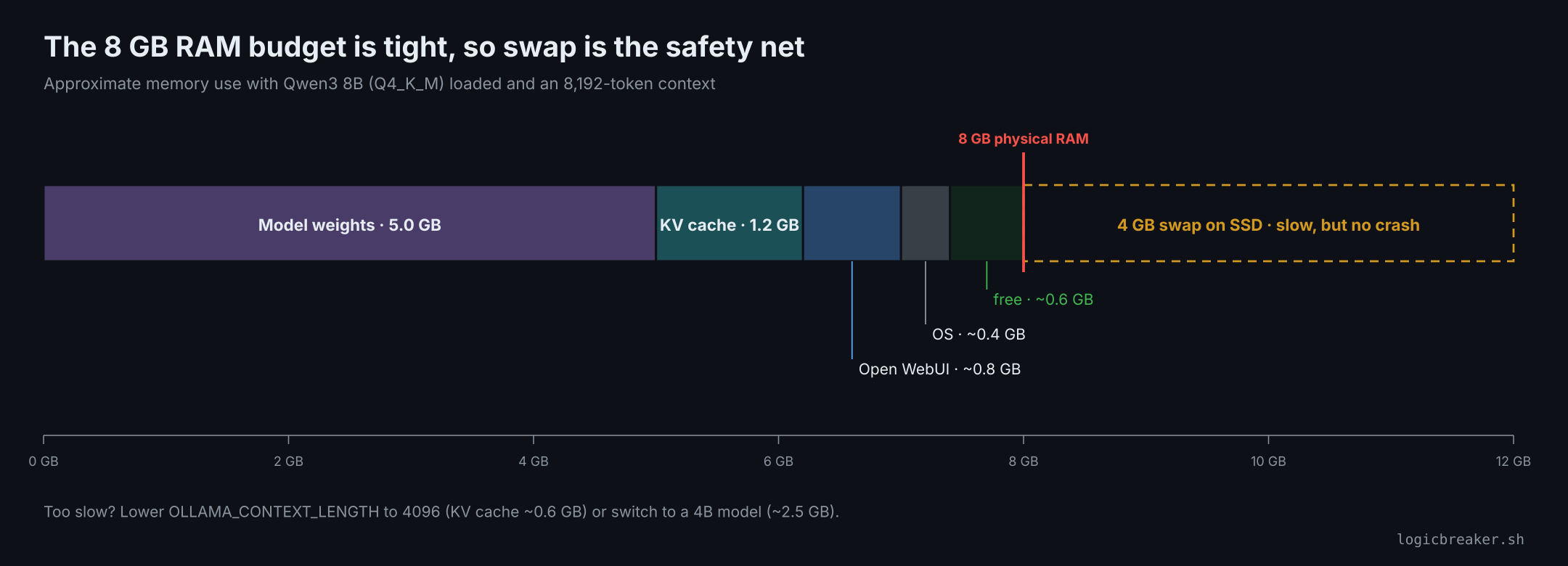
That is close to the limit, which is why the setup adds 4 GB of swap as a safety net. If the server ever swaps heavily, generation crawls; drop the context to 4096 or switch to a 4B model.
What I'd run:
- Main: an abliterated Qwen3 8B (for example
huihui_ai/qwen3-abliterated:8bon Ollama, about 5 GB). Strong instruction-following for its size, good at rewriting text and decent at code. - Fast fallback: a 4B model. Roughly twice the speed, noticeably weaker on reasoning. Good for pure grammar fixing.
- Avoid: the old
llama2-uncensored-era models. They are much weaker
Model names on Ollama change often. Search ollama.com for "qwen3 abliterated 8b" and pick the Q4_K_M tag.
Thinking models (the ones that write out a chain of thought before answering) do reason better, but on CPU the thinking step can take minutes. For grammar work, turn thinking off or use a non-thinking model.
The whole setup#
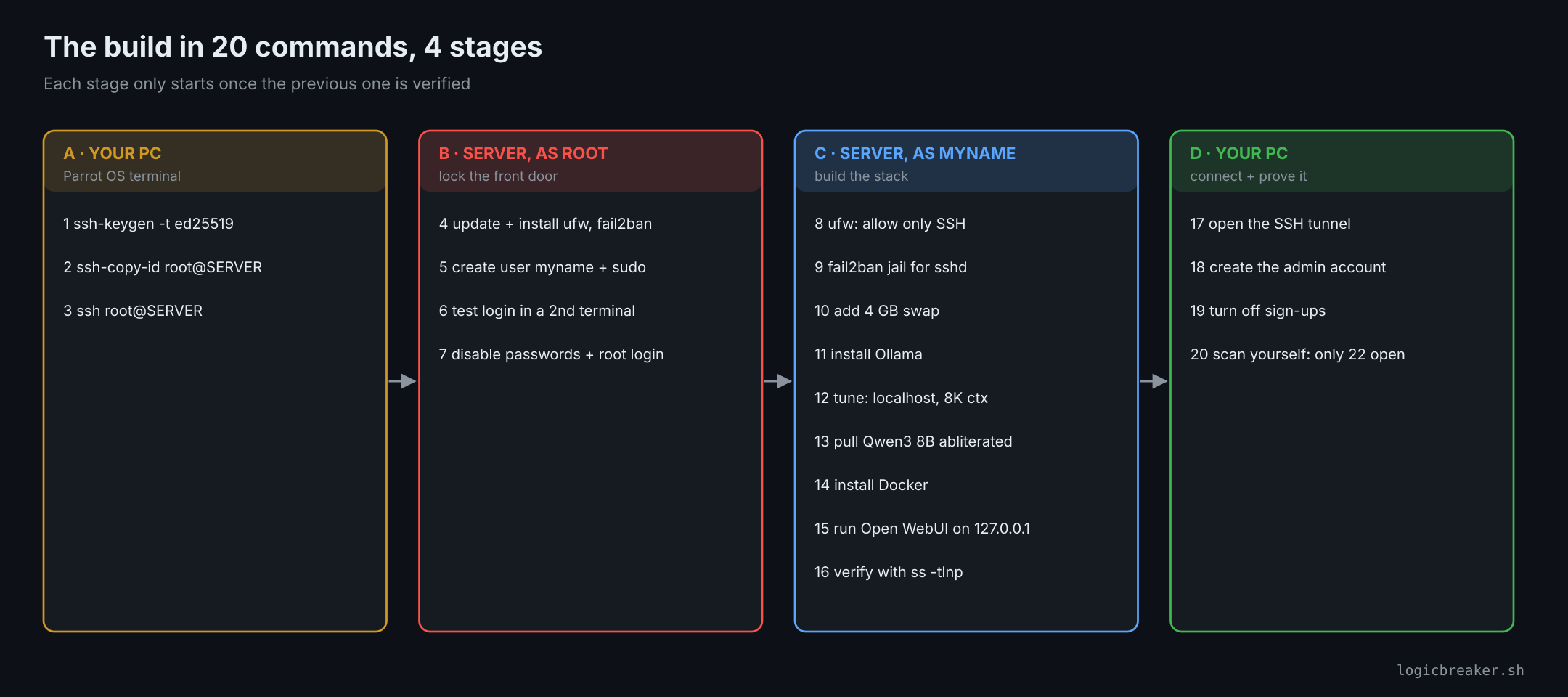
The whole build is 20 commands across four stages your PC, the server as root, the server as your own user, then back on your PC to connect. It was tested on Ubuntu 24.04 (Ubuntu 22.04 and Debian 12) and assumes you have the root password from your server provider Replace YOUR_SERVER_IP and myname with your own values
Part A: on your PC (linux)#
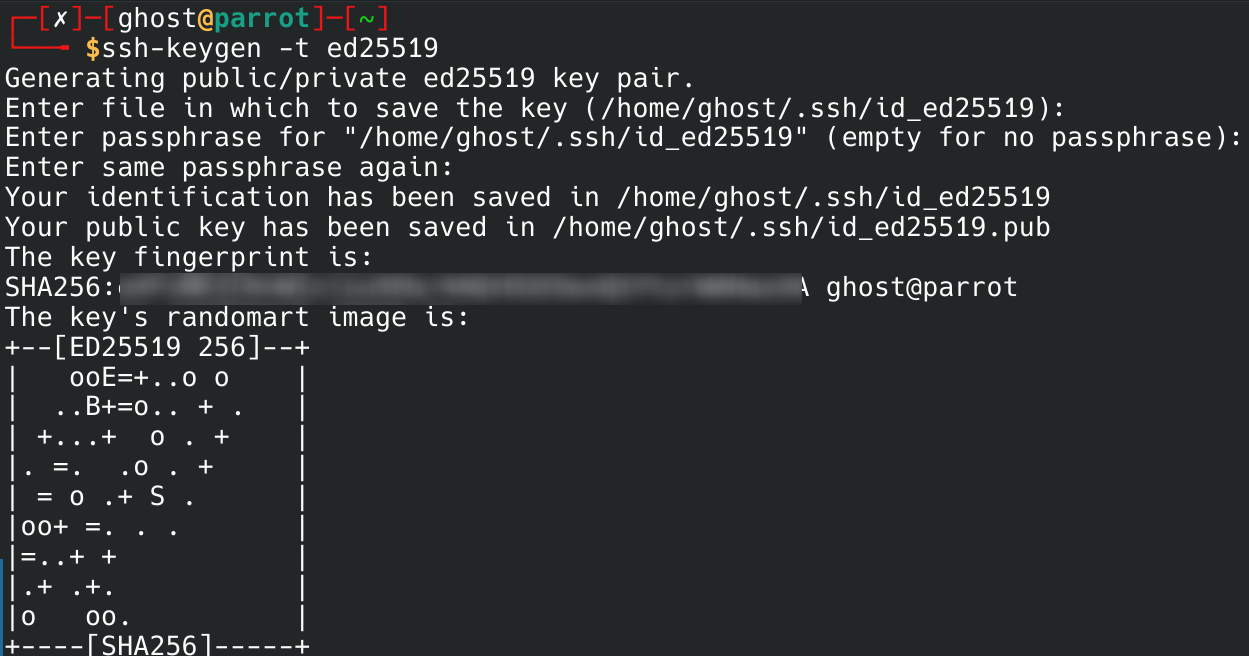
Create an SSH key Ed25519 keys are short, fast and strong. set passphrase for extra protection if you like
ssh-keygen -t ed25519
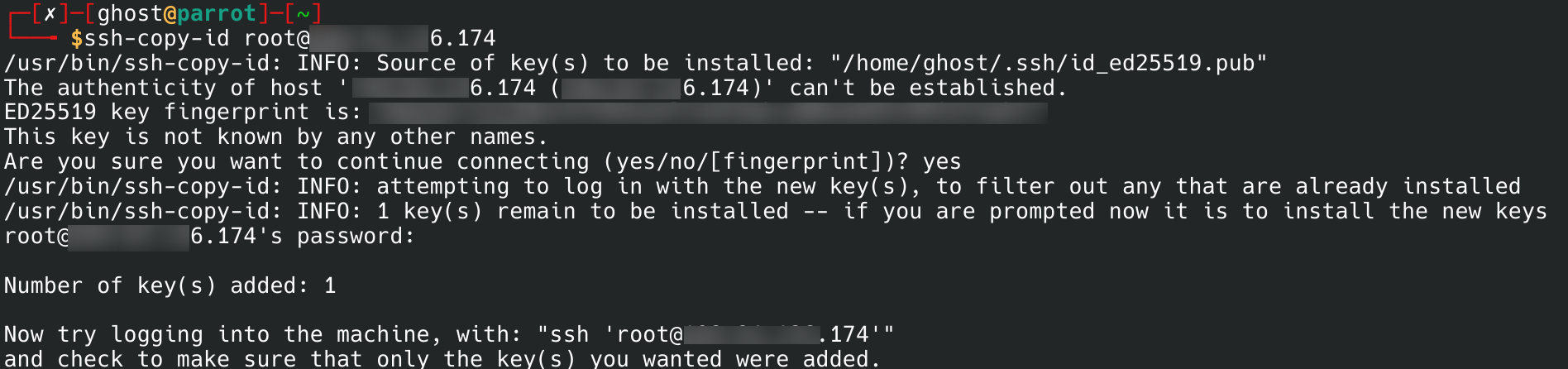
Copy the public key to the server This is the last time you will type the root password
ssh-copy-id root@YOUR_SERVER_IP
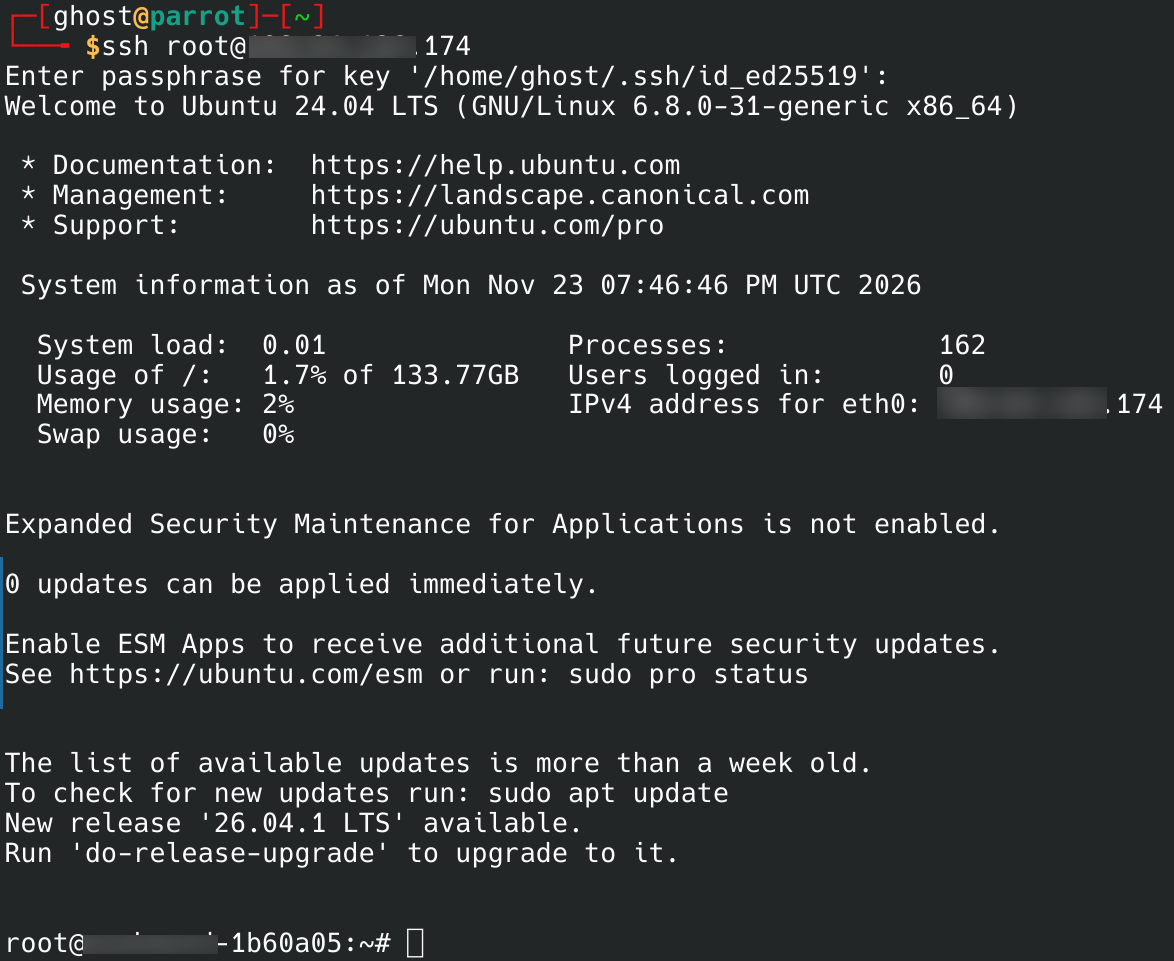
Log in as root
ssh root@YOUR_SERVER_IP
Part B: on the server as root#
Update the system and install the tools we need. python3-systemd lets fail2ban read SSH logs from the systemd journal
apt update && apt upgrade -y
apt install -y ufw fail2ban python3-systemd curl
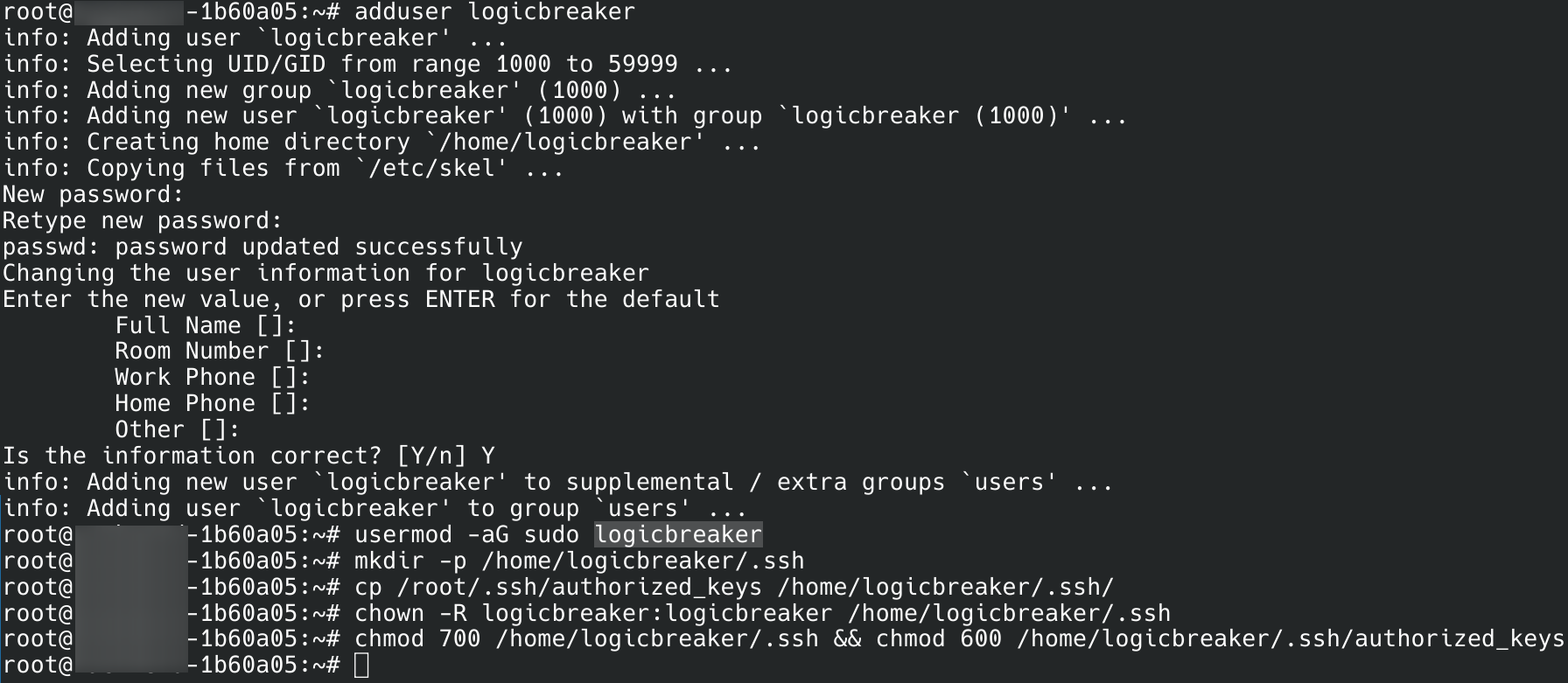
Create your own user with sudo rights and give it the same SSH key as root.
Day to day work should never happen as root
adduser <username>
usermod -aG sudo <username>
mkdir -p /home/<username>/.ssh
cp /root/.ssh/authorized_keys /home/<username>/.ssh/
chown -R <username>:<username> /home/<username>/.ssh
chmod 700 /home/<username>/.ssh && chmod 600 /home/<username>/.ssh/authorized_keys
Test the new user from second terminal.** Keep the root session open until this works, so mistake can't lock you out
ssh <username>@YOUR_SERVER_IP
sudo whoami
Disable password and root logins. After this, the only way in is your private key, as 00- on purpose sshd uses the first value it reads, so this beats any PasswordAuthentication yes your host's own drop-in file sets
sudo su
cat > /etc/ssh/sshd_config.d/00-hardening.conf <<'EOF'
PasswordAuthentication no
KbdInteractiveAuthentication no
PermitRootLogin no
EOF
sshd -t && systemctl restart ssh

open new terminal and confirm ssh <username>@YOUR_SERVER_IP still logs you in without a password. From here on, use only that login
Part C: on the server, as logicbreaker user#
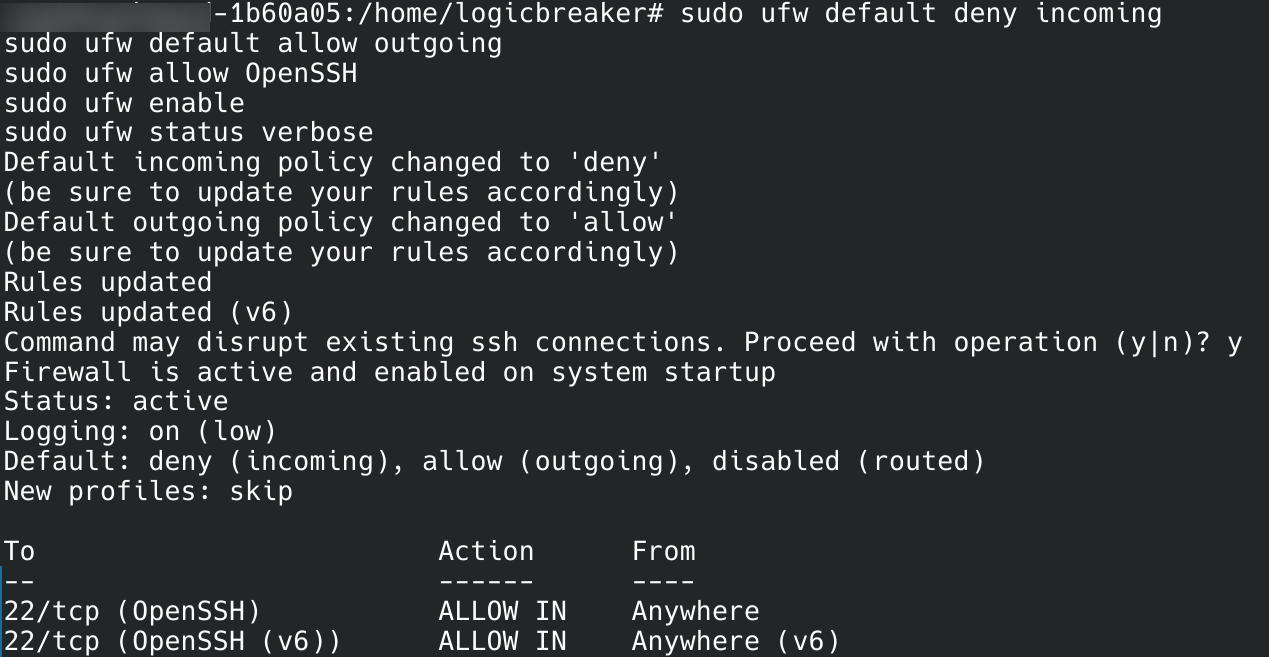
Set up the firewall so SSH is the only way in.** Default deny inbound, allow outbound then open just port 22
sudo ufw default deny incoming
sudo ufw default allow outgoing
sudo ufw allow OpenSSH
sudo ufw enable
sudo ufw status verbose
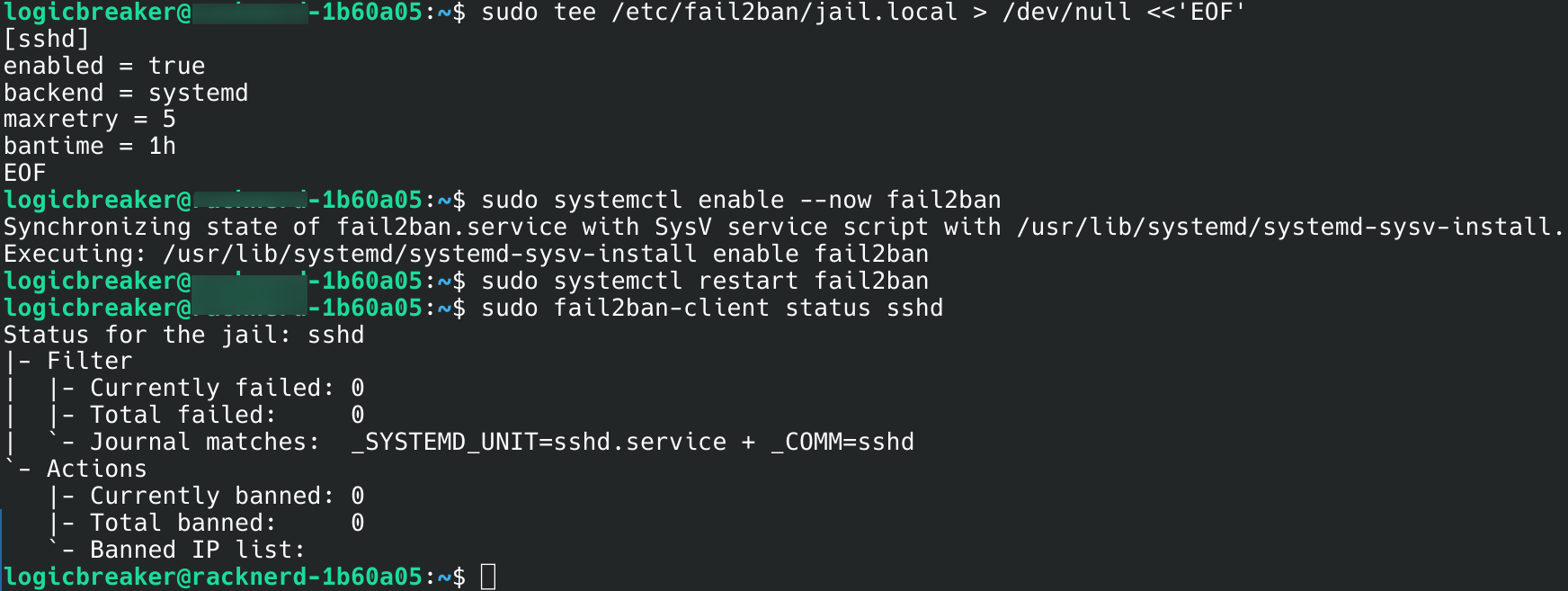
Turn on fail2ban so bots that guess at SSH get banned for an hour after 5 failed tries. The systemd backend makes it read the journal, which is where modern Debian and Ubuntu put SSH logs
sudo tee /etc/fail2ban/jail.local > /dev/null <<'EOF'
[sshd]
enabled = true
backend = systemd
maxretry = 5
bantime = 1h
EOF
sudo systemctl enable --now fail2ban
sudo systemctl restart fail2ban
sudo fail2ban-client status sshd
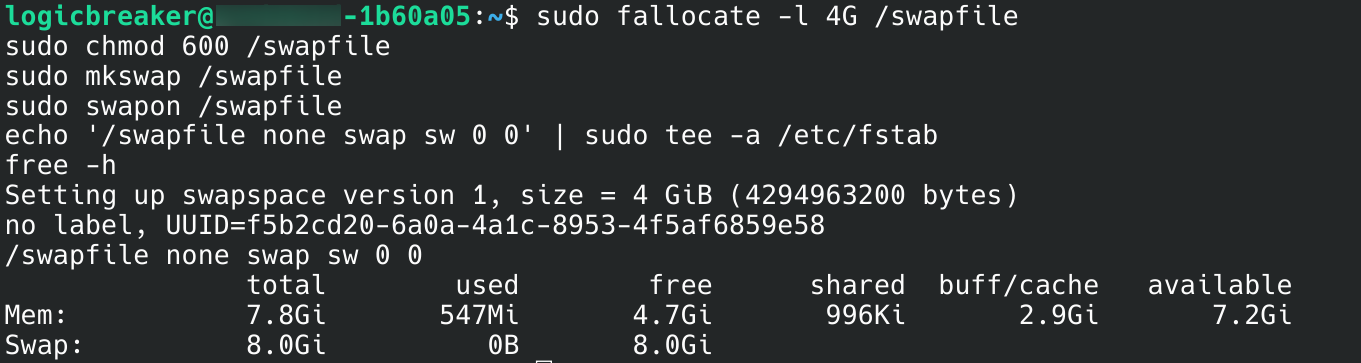
Adding 4 GB of swap as a safety net for the tight RAM budget.
sudo fallocate -l 4G /swapfile
sudo chmod 600 /swapfile
sudo mkswap /swapfile
sudo swapon /swapfile
echo '/swapfile none swap sw 0 0' | sudo tee -a /etc/fstab
free -h
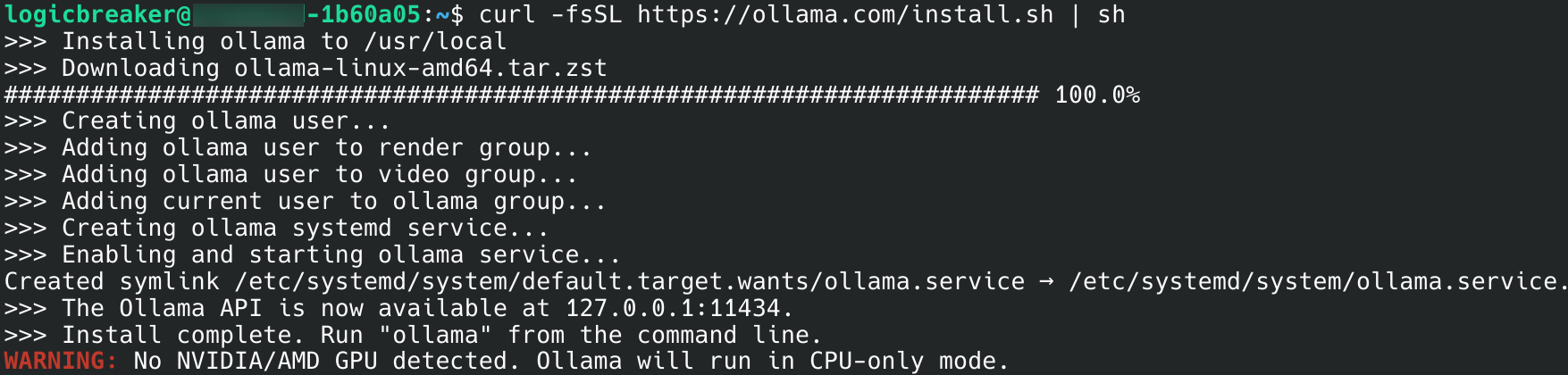
Install Ollama. The script installs the binary, creates an ollama system user and registers a systemd service.
curl -fsSL https://ollama.com/install.sh | sh
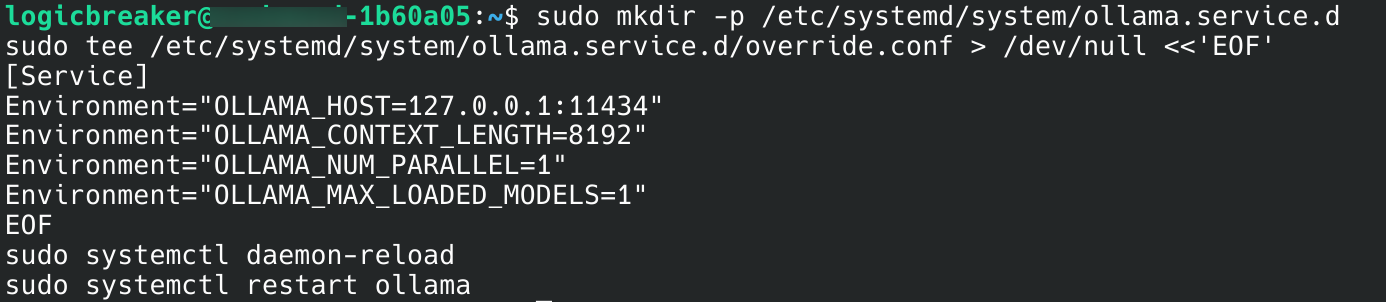
Tune Ollama for 8 GB of RAM. systemd drop in pins the API to localhost, caps the context at 8,192 tokens (keeping the KV cache near 1.2 GB) and allows one request and one loaded model at a time.
sudo mkdir -p /etc/systemd/system/ollama.service.d
sudo tee /etc/systemd/system/ollama.service.d/override.conf > /dev/null <<'EOF'
[Service]
Environment="OLLAMA_HOST=127.0.0.1:11434"
Environment="OLLAMA_CONTEXT_LENGTH=8192"
Environment="OLLAMA_NUM_PARALLEL=1"
Environment="OLLAMA_MAX_LOADED_MODELS=1"
EOF
sudo systemctl daemon-reload
sudo systemctl restart ollama
Pull the model and test it from the command line. The download is about 5 GB.
ollama pull huihui_ai/qwen3-abliterated:8b
ollama run huihui_ai/qwen3-abliterated:8b "Fix the grammar: me and him goes to store yesterday"
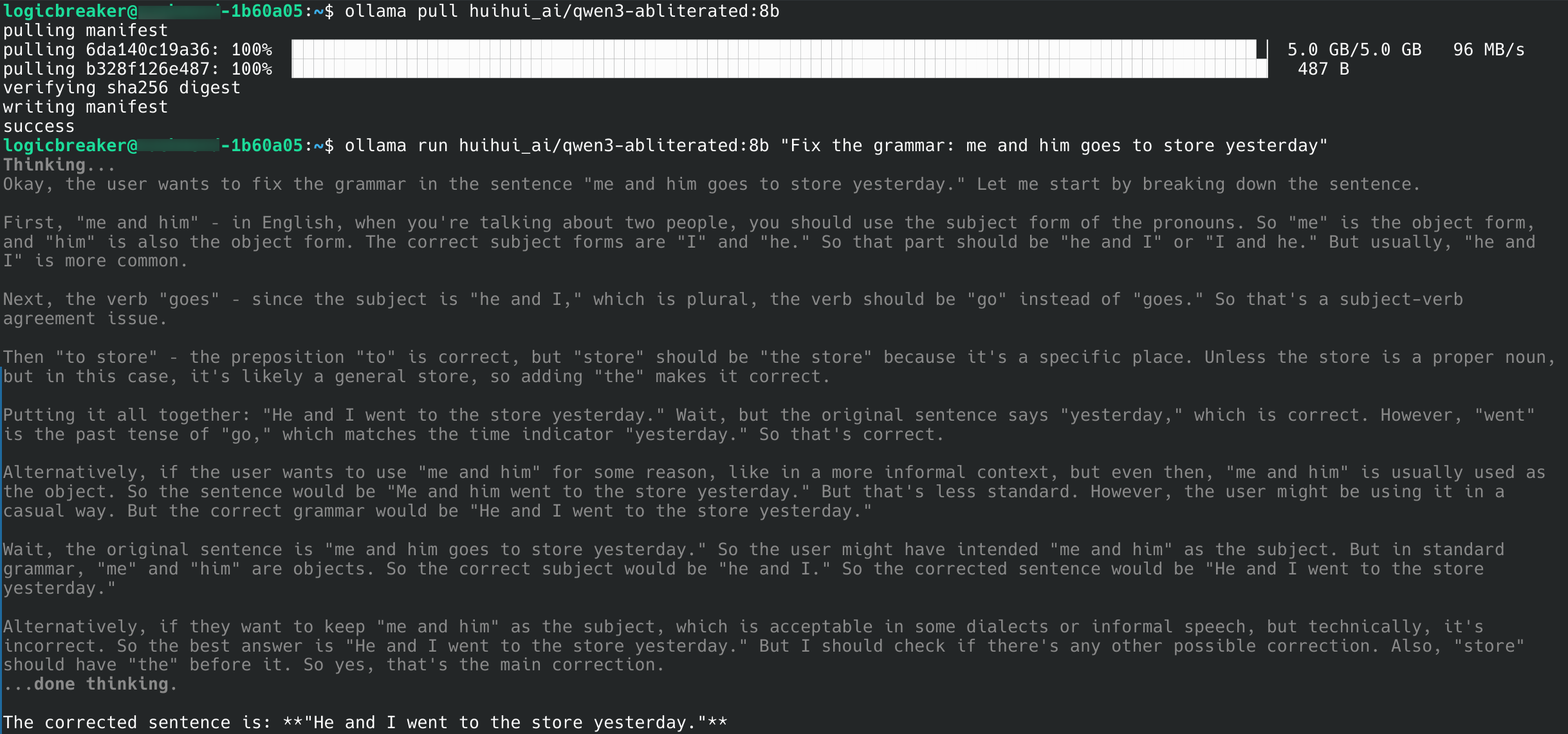
If that name doesn't resolve, search ollama.com for "qwen3 abliterated 8b" and use the name listed there. Plain qwen3:8b works too, but keeps its refusals.
Install Docker
curl -fsSL https://get.docker.com | sudo sh
Start Open WebUI on the loopback interface only. Host networking keeps Docker from punching a hole through ufw, HOST=127.0.0.1 keeps the listener off the public interface and the last three variables switch off analytics. The first start takes 1 to 3 minutes.
sudo docker run -d --name open-webui --restart always --network host \
  -e OLLAMA_BASE_URL=http://127.0.0.1:11434 \
  -e PORT=8080 -e HOST=127.0.0.1 \
  -e ANONYMIZED_TELEMETRY=false -e DO_NOT_TRACK=true -e SCARF_NO_ANALYTICS=true \
  -v open-webui:/app/backend/data \
  ghcr.io/open-webui/open-webui:main
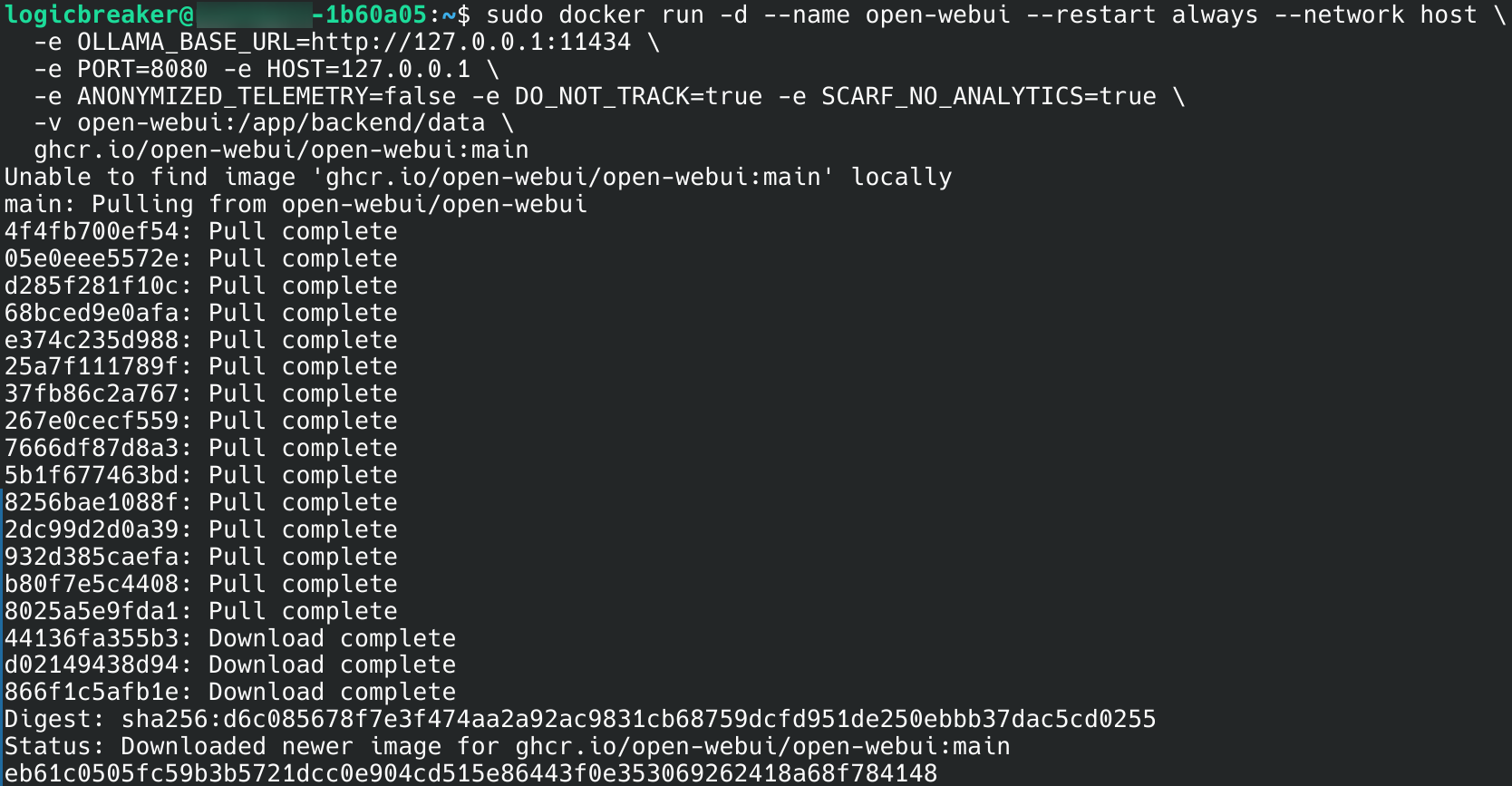
Verify what is listening. now both lines must show 127.0.0.1. If either shows 0.0.0.0 or *, stop and fix it before you go on.
sudo ss -tlnp | grep -E '8080|11434'

Part D: back on your PC#
Open the tunnel. Leave this terminal open while you use the assistant. If you run anonsurf or route through Tor, stop it first (sudo anonsurf stop), or SSH will be slow and fail2ban may ban the exit node.
ssh -N -L 8080:127.0.0.1:8080 myname@YOUR_SERVER_IP

open http://localhost:8080 in browser and create your account immediately. the first account becomes the admin.
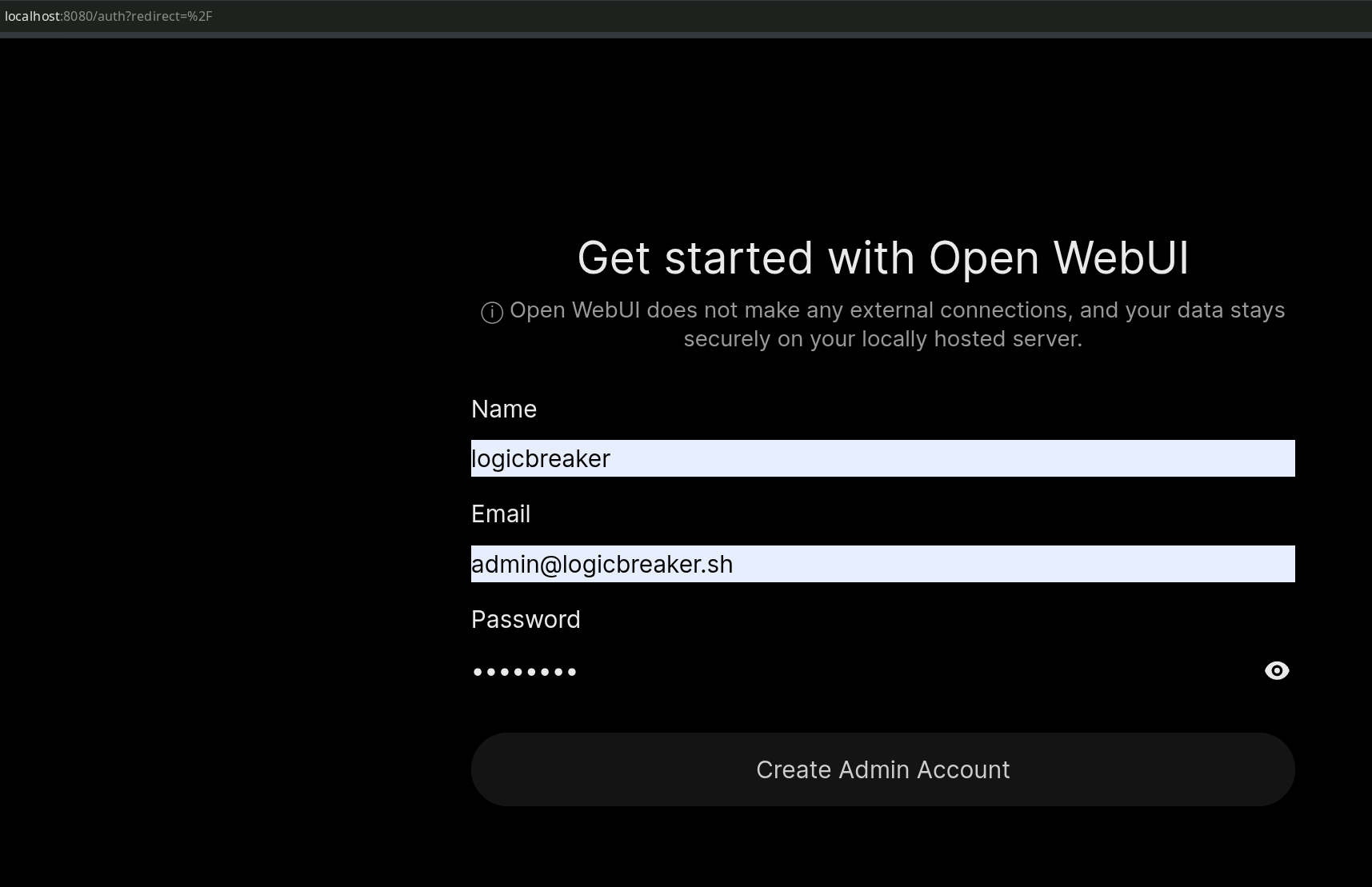
Switch off sign ups. Profile icon → Admin Panel → Settings → General → turn off Enable New Sign Ups → Save.
Prove the server is invisible. With the tunnel closed, try the public IP directly. Both checks should time out or be refused.
curl -m 5 http://YOUR_SERVER_IP:8080
curl -m 5 http://YOUR_SERVER_IP:11434
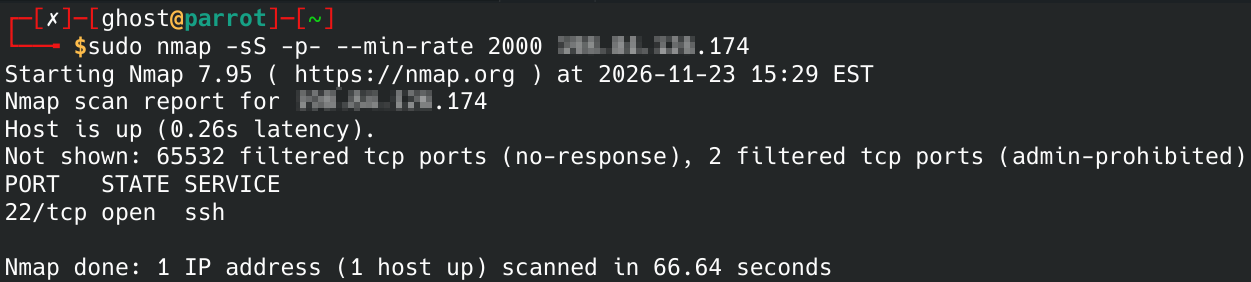
For a fuller picture, scan yourself from the outside. Only 22/tcp should come back open.
sudo nmap -sS -p- --min-rate 2000 YOUR_SERVER_IP
Updating#
On the server, every few weeks:
sudo apt update && sudo apt upgrade -y
curl -fsSL https://ollama.com/install.sh | sh
sudo docker pull ghcr.io/open-webui/open-webui:main
sudo docker rm -f open-webui
Then run the step 15 command again. Your accounts and chats survive because they live in the open-webui volume, not the container
Result#
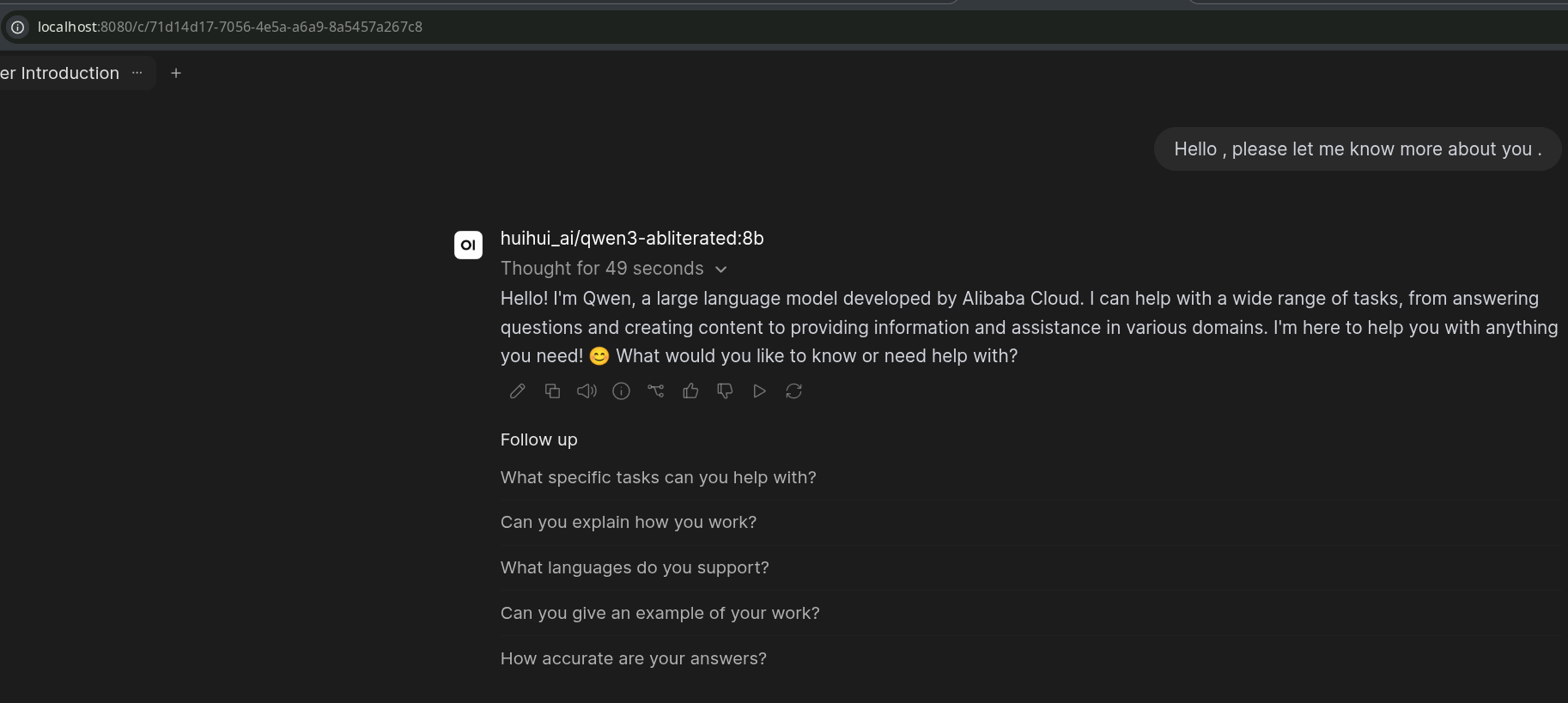
You now have a language model that runs on hardware you rent, answers to nobody but you, and is reachable only through a key-authenticated, encrypted tunnel. The public internet sees one hardened SSH port and nothing else. It is not as smart as the frontier models, but it never logs your prompts for someone else, never changes behind your back, and never says no to a legitimate question about the payload you just pulled out of a log.
If your workloads grow, the upgrade path is simple: more RAM lets you run a 14B model, and a GPU server makes everything an order of magnitude faster. The tunnel and the lockdown stay exactly the same.