
The lab
Here is how PortSwigger describes it
This lab reflects user input in a canonical link tag and escapes angle brackets.
To solve the lab, perform a cross-site scripting attack on the home page that injects an attribute that calls the alert function.
To assist with your exploit, you can assume that the simulated user will press the following key combinations:
- ALT+SHIFT+X
- CTRL+ALT+X
- Alt+X
Please note that the intended solution to this lab is only possible in Chrome.
Every lab up to now let us smuggle in a whole new tag, but this one escapes angle brackets, so a fresh tag is off the table, and the trick shifts to sneaking an extra attribute onto a tag that is already sitting on the page.
The idea#
First, what a canonical link tag even is. It is a line that lives in the head of a page, written as <link rel="canonical" href="...">, and its job is to tell search engines which URL is the official address for this page. Sites use it so that when the same page can be reached through several slightly different URLs, search engines know which one to count and do not treat the rest as duplicate content. The important detail for us is that this site builds that href out of the current URL, our query string included, so whatever we drop into the query ends up inside that href attribute.
Now the constraint. The site escapes angle brackets, so < and > come back as harmless text and we cannot open a tag of our own like we have all series. But escaping brackets does nothing to stop us breaking out of the attribute value with a quote. Once we are outside the value, we are still inside the <link> tag, and a tag will happily accept extra attributes we bolt onto it. That is exactly what the task is asking for when it says inject an attribute rather than inject a tag.
Step 1 - find the reflection in the canonical link tag#
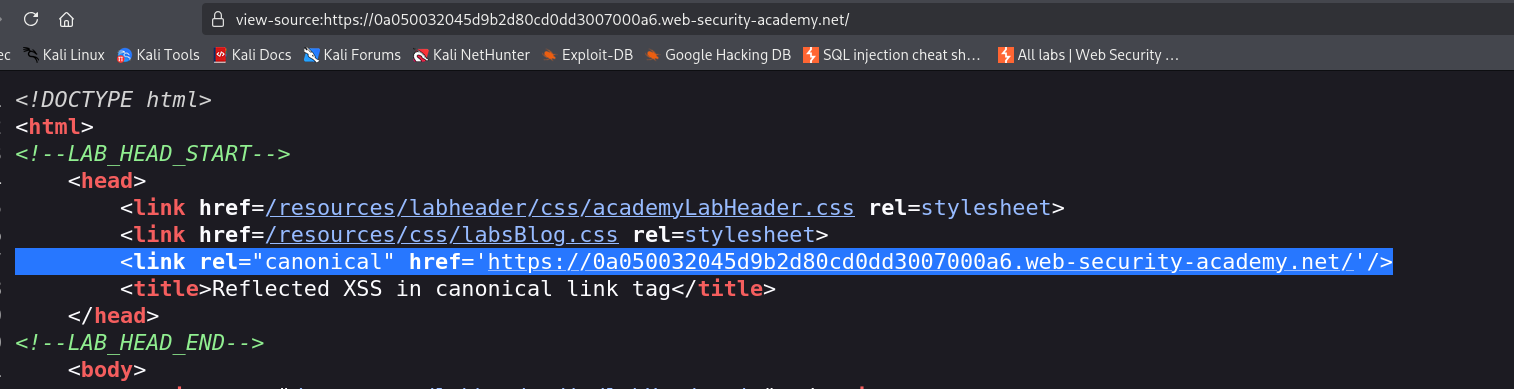
Poking at the home page with a query string and viewing the source, our input comes back inside the href of the canonical link tag, roughly like this.
<link rel="canonical" href='https://lab/?OURINPUT' />
Two things stand out. Any < or > we send comes back escaped, so tags are dead. But the quote around the href value is not escaped, which means a quote of our own can close that value early and let us keep writing attributes after it.
Step 2 - decide what attribute to inject#
We can add attributes to the link tag, so the question is which attributes actually get us to running code. A plain event handler like onclick is only half an answer, because a canonical link tag is invisible and nobody is ever going to click it. We need a way to fire that handler without a normal click.
That is where accesskey comes in. accesskey is a standard HTML attribute you can put on almost any element, and it assigns a keyboard shortcut to that element. When the user presses the browser's access key combination together with the letter we chose, the browser activates the element for them, exactly as if it had been clicked. So the pair we want is accesskey to give the element a hotkey and onclick to be the code that runs when that hotkey activates it. This is also why the lab tells us the simulated user will press those key combinations, they are the trigger we are building for.
Step 3 - inject the accesskey and onclick pair and fire it#
Here is the URL that does it.
/?%27accesskey=%27x%27onclick=%27alert(1)
The %27 are just URL encoded single quotes, and decoded the payload reads like this.
'accesskey='x'onclick='alert(1)
Follow what each quote is doing, because the neat part is how they all pair up. The first ' closes the href value our input was sitting in. Then accesskey='x' lands as a brand new attribute on the link tag, giving it the hotkey x. Then onclick='alert(1) starts one more attribute, and its opening quote is closed by the tag template's own trailing quote that used to end the href. So nothing is left dangling, and the link tag ends up carrying both accesskey='x' and onclick='alert(1)'.
From here the simulated user does the last step for us. On the home page they press the access key combination for x, which in Chrome is ALT+SHIFT+X on Windows or Linux and CTRL+ALT+X or Alt+X on a Mac. The browser sees the hotkey, activates our link element as though it were clicked, the onclick runs, and alert(1) fires. And that is the whole reason this only works in Chrome, since the way access keys activate an element and set off its click handler here is Chrome specific.
With this, the lab is solved!